
Graphics card benchmarks are the most common way to compare how different GPUs perform, but the numbers only help if you know how to read them. This guide explains the main metrics, the factors that change results and how to run fair tests on your own PC.
What Graphics Card Benchmarks Measure
Most graphics card benchmarks record how many frames per second (FPS) a card produces in a game or test scene. Higher is smoother. You can read more about frame rate on Wikipedia, but the key metrics are simple:
- Average FPS: the typical frame rate across the test run.
- 1% lows: the slowest frames, which show stutter better than the average.
- Frame time: how long each frame takes to draw, measured in milliseconds.
- Synthetic scores: points from dedicated test programs, useful for comparing cards but not tied to a specific game.
Synthetic Tests vs In-Game Results
Synthetic tools run the same scene every time, which makes them consistent. In-game tests are closer to what you will see, but results vary between titles because each game leans on the hardware differently. A card that leads in one game can trail in another.
For buying decisions, in-game graphics card benchmarks from several titles you play are usually more useful than a single synthetic score.
Factors That Change the Numbers
The same card can produce very different results depending on the test setup. Look for these details before comparing charts:
- Resolution: 1080p, 1440p and 4K place very different loads on the GPU.
- Settings preset: low, high and ultra settings change the work per frame.
- Upscaling and ray tracing: features such as DLSS, FSR or ray tracing shift results a lot.
- Processor and memory: at lower resolutions the CPU can limit frame rates.
- Driver version: updates can change performance in specific games.
Only compare graphics card benchmarks that use the same resolution, settings and test system.
Running Your Own Graphics Card Benchmarks
Many games include a built-in benchmark mode. Close background apps, update your graphics driver, pick one resolution and preset, then run each test three times and note the average. Keep the room temperature similar between runs, because heat can affect clock speeds.
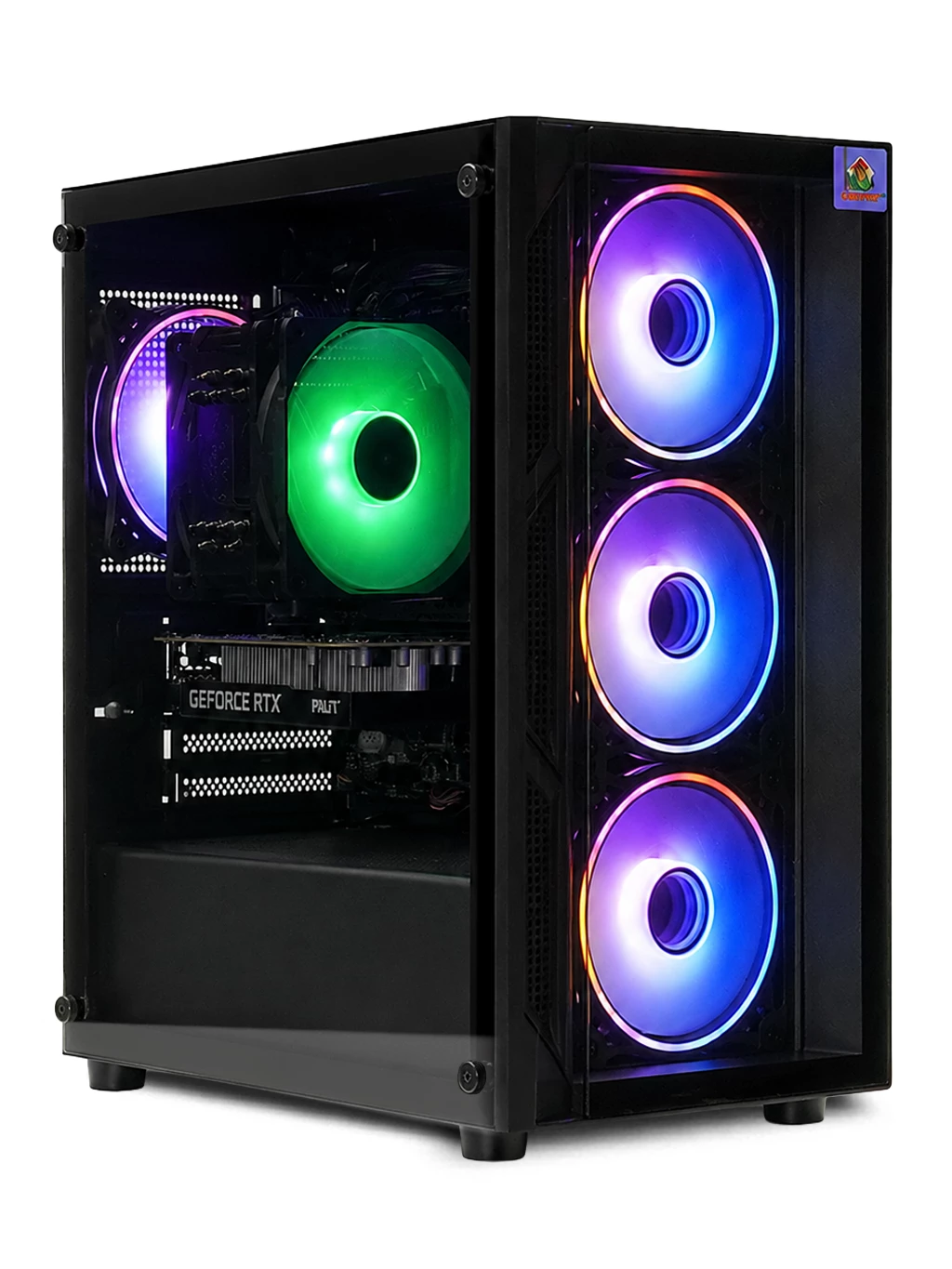
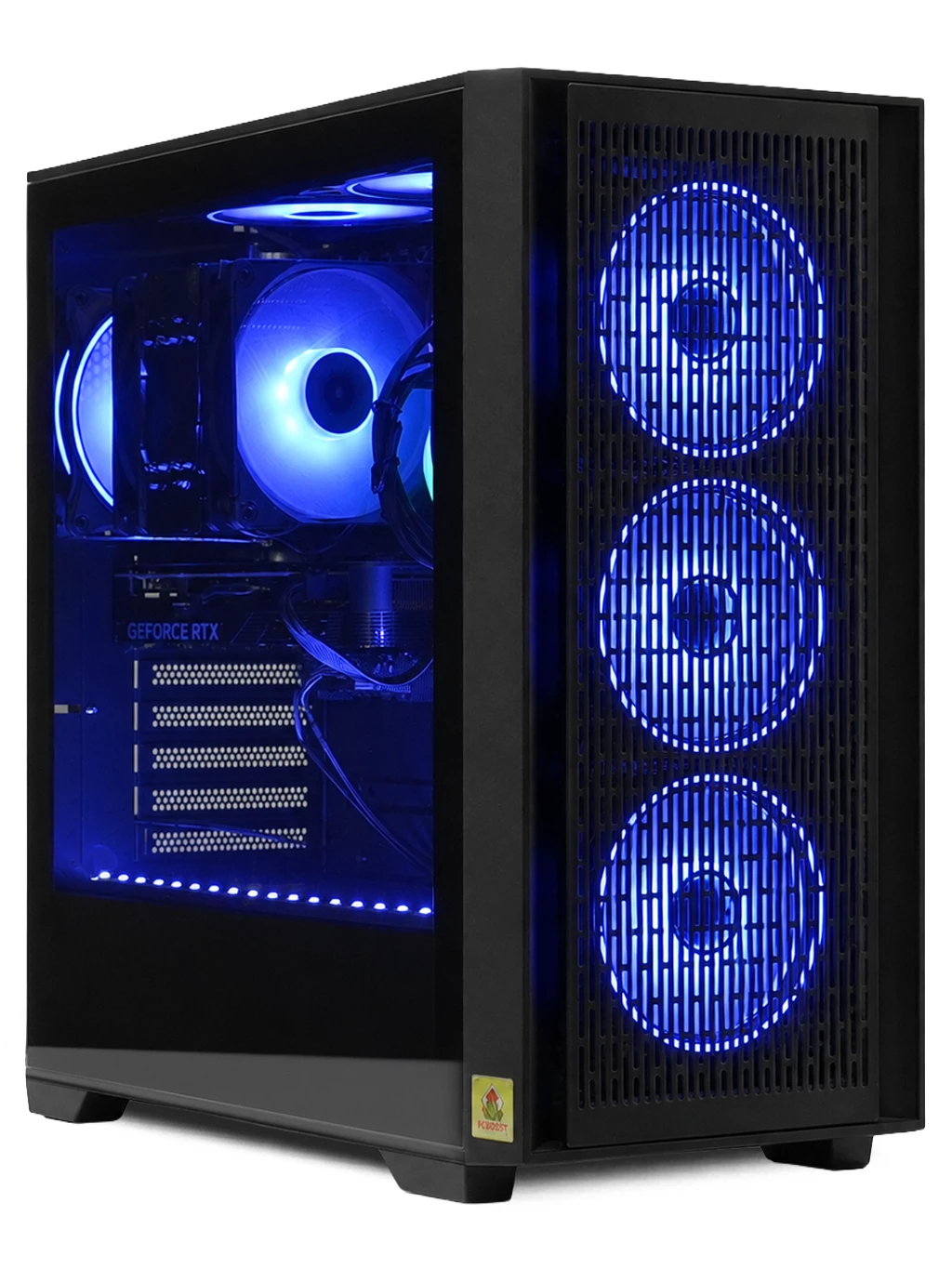
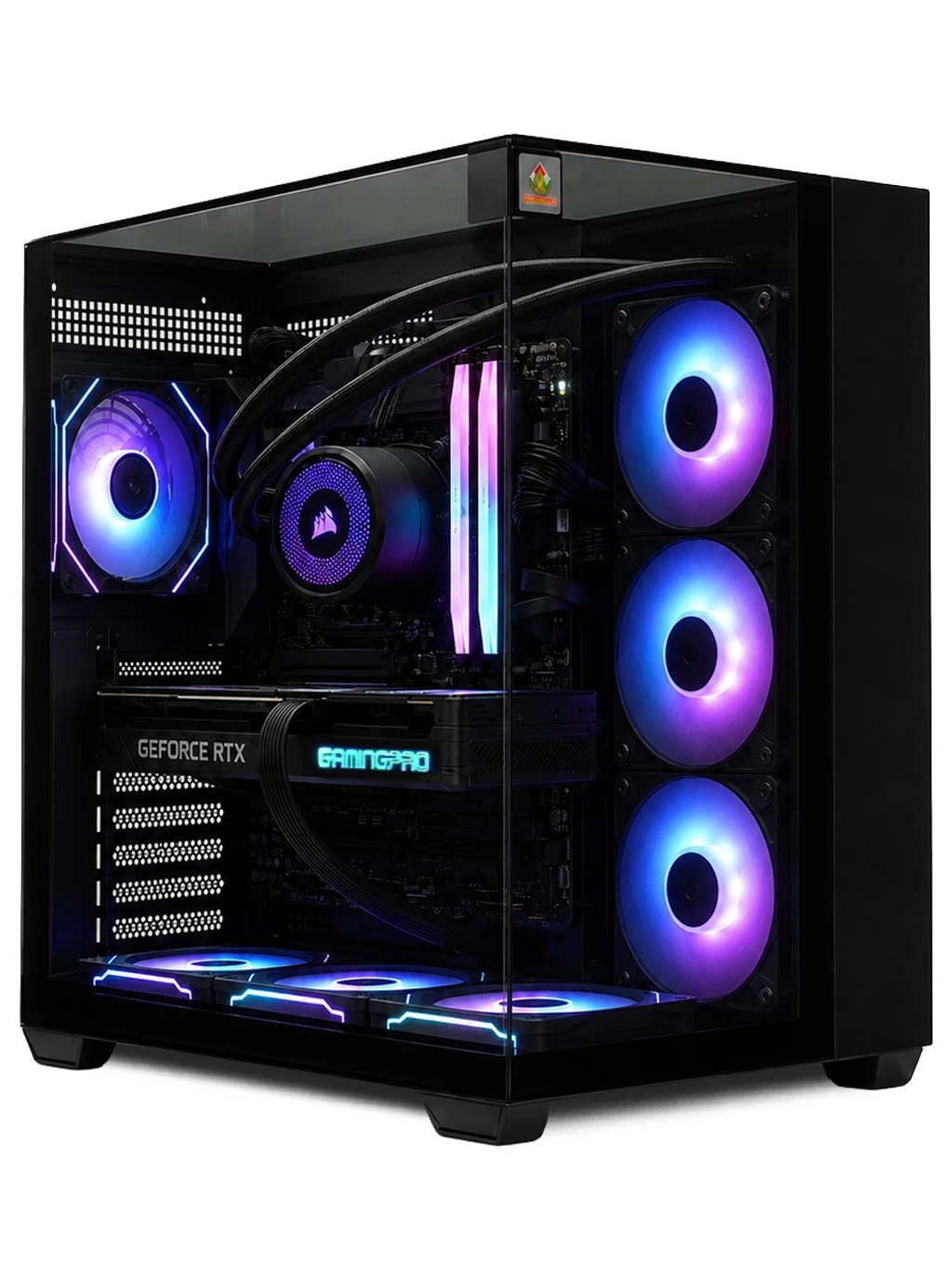
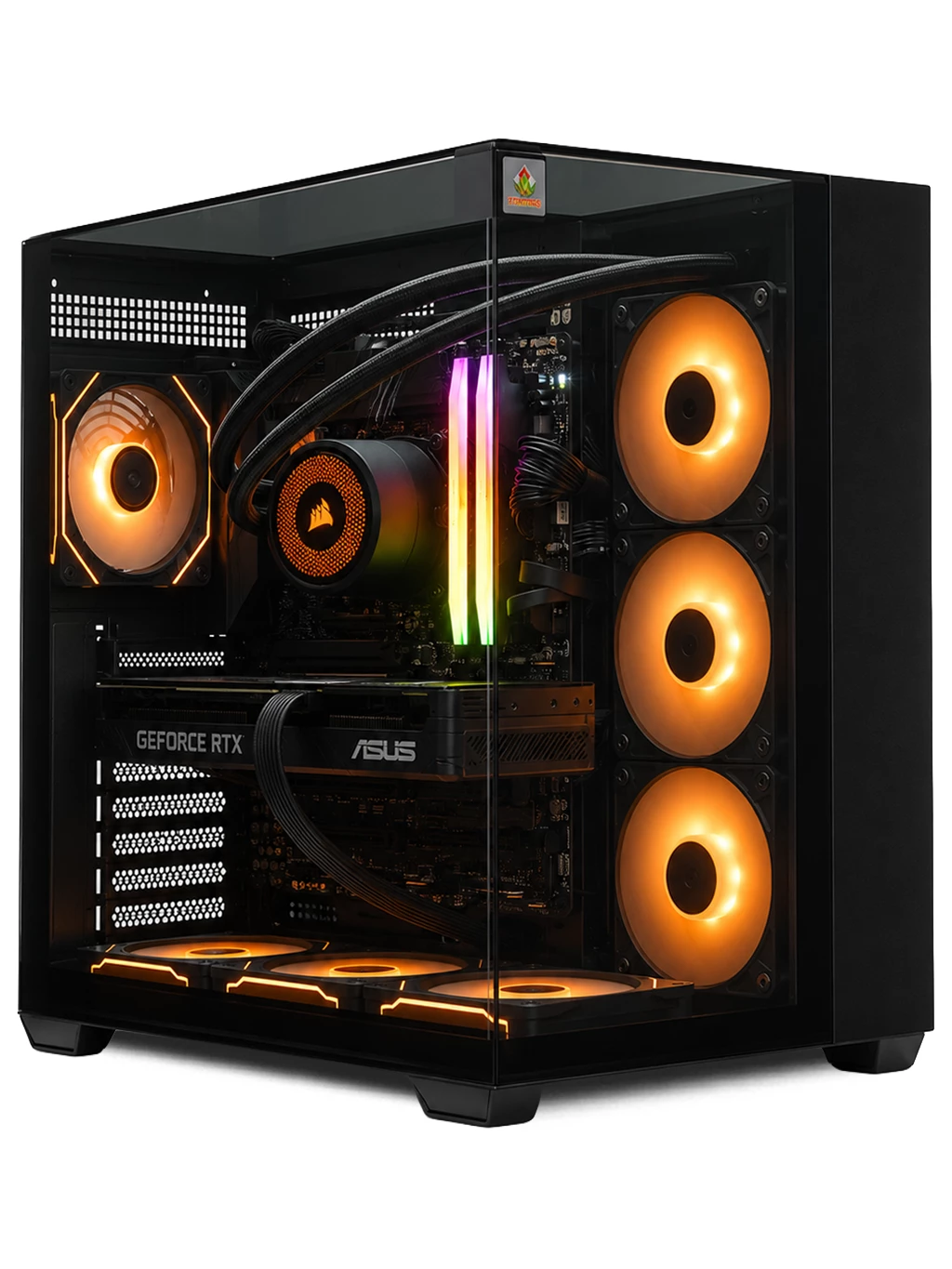
If you want to compare systems from our range, look at the graphics card first. The Tuff Gaming PC uses an RTX 3060 Ti, the Orion Gaming PC pairs an RX 9060 XT 16GB with a Ryzen 5 7500, and the Hyperion Gaming PC uses an RTX 5080 16GB with a Ryzen 7 9800X3D.
See more options on our RTX gaming PCs and 4K gaming PCs pages.
Graphics Card Benchmarks FAQs
Are graphics card benchmarks the same on every PC?
No. The processor, memory, drivers and cooling all affect the result, so the same card can score differently in two systems.
Which matters more, average FPS or 1% lows?
Both matter. Average FPS shows overall speed, while 1% lows show how smooth the game feels.
Do I need special software?
Not always. Built-in game benchmarks and free monitoring tools are enough for fair comparisons.
Want help matching a card to your games? Contact our team or browse all our gaming PCs.