
Knowing how to check CPU temperature helps you spot cooling problems before they cause slowdowns, crashes or noisy fans. This guide covers the reliable ways to read it on Windows 11 and what to do with the numbers.


Why Windows 11 Does Not Show It By Default
Task Manager in Windows 11 shows CPU usage and clock speed, and it can show the temperature of a dedicated graphics card, but it does not display the processor temperature. That means the answer to how to check CPU temperature is either your motherboard firmware or a third-party monitoring tool.
How To Check CPU Temperature In BIOS Or UEFI
Every desktop motherboard reports temperatures in its firmware, so no extra software is needed:
- Open Settings, then System, then Recovery.
- Next to Advanced startup, select Restart now.
- Choose Troubleshoot, then Advanced options, then UEFI Firmware Settings, and restart.
- Look for a Monitor, Hardware Monitor or PC Health page showing the CPU temperature.
You can also press the setup key while the PC starts, often Delete or F2. The drawback is that this reading is taken while the system is idle, so it tells you nothing about gaming loads.
Using A Monitoring Tool
For live readings while you play or work, a monitoring app is the most practical way how to check CPU temperature over time. Popular free options include HWiNFO, Core Temp and the utility supplied by your motherboard maker. Only download them from the developer’s official website.
- Install and open the tool.
- Find the CPU package or Tctl/Tdie reading.
- Leave it running, play a demanding game, then check the maximum value it recorded.
What The Readings Mean
There is no single correct number. A desktop chip at idle normally sits well below its load temperature, and readings rise quickly once a game or render starts. Modern processors are designed to run warm under load and will slow themselves down if they reach their limit. Check your processor manufacturer’s specification for its maximum rated temperature, for example on the AMD Ryzen product pages, rather than relying on a figure from a forum.
Once you know how to check CPU temperature, act on high readings. If temperatures climb close to the limit, clean dust from filters and fans, check that case fans are working, and consider fresh thermal paste on an older system. An Electronics Cleaning Kit or a can of Multipurpose Air Duster 750ml makes dust removal easier.
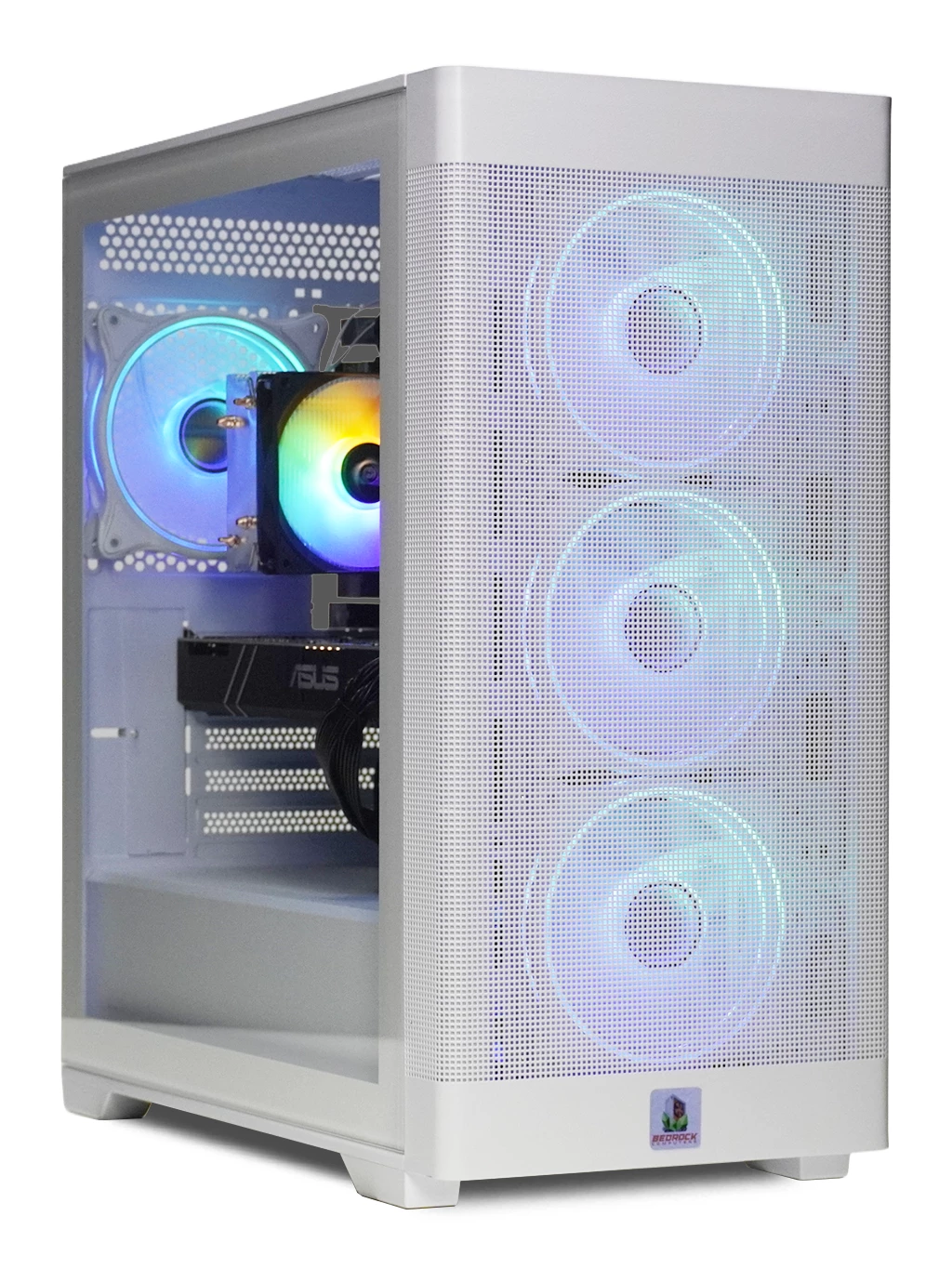
If you would rather start with a well-cooled system, our gaming PCs range includes options such as the Bedrock Zircon Gaming PC with a 6-core Ryzen.
How To Check CPU Temperature FAQs
Can I see CPU temperature in Task Manager?
No. Task Manager shows usage and speed but not processor temperature, so use BIOS/UEFI or a monitoring tool.
How often should I check?
Learning how to check CPU temperature once is enough; repeat it after cleaning, after changing settings, or if the PC becomes loud or unstable.
Is a hot CPU dangerous?
Processors protect themselves by throttling, but constant high heat can hurt performance, so improve airflow if readings stay high.
Still unsure how to check CPU temperature or whether your PC runs too hot? Contact our team and we will help you work out the next step, or browse our gaming PC deals.