
An FPS counter shows how many frames per second your PC is drawing, which is the quickest way to see how smoothly a game is running. Higher numbers usually feel smoother and more responsive. Windows 11 and most game launchers include one for free, so you rarely need extra software.
Use The Xbox Game Bar FPS Counter
Windows 11 has a built-in option through Xbox Game Bar:
- Start your game, then press Win+G to open Xbox Game Bar.
- Open the Performance widget from the widget menu if it is not already showing.
- Select the FPS tab. The first time, you may be asked to request access and restart your PC.
- Pin the widget so it stays on screen while you play.
The same widget also shows CPU, GPU, VRAM and RAM usage, which helps you spot what is limiting performance.
Steam’s Built-In FPS Counter
If you launch games through Steam, open Steam, go to Settings, then In Game, and choose a corner for the in-game FPS counter. It appears in any game started from Steam and has very little effect on performance.
Graphics Driver Overlays
Graphics card software includes performance overlays too. The NVIDIA app has a statistics overlay you can enable from its in-game overlay, opened with Alt+Z by default. AMD Software: Adrenalin Edition includes a metrics overlay you can switch on from its performance settings. Each can show frame rate alongside temperature and usage.
Some overlays also record frame times, which reveal short hitches that an average can hide. Keep your driver software up to date so these overlays work correctly with newer games.
Reading Your FPS Counter Results
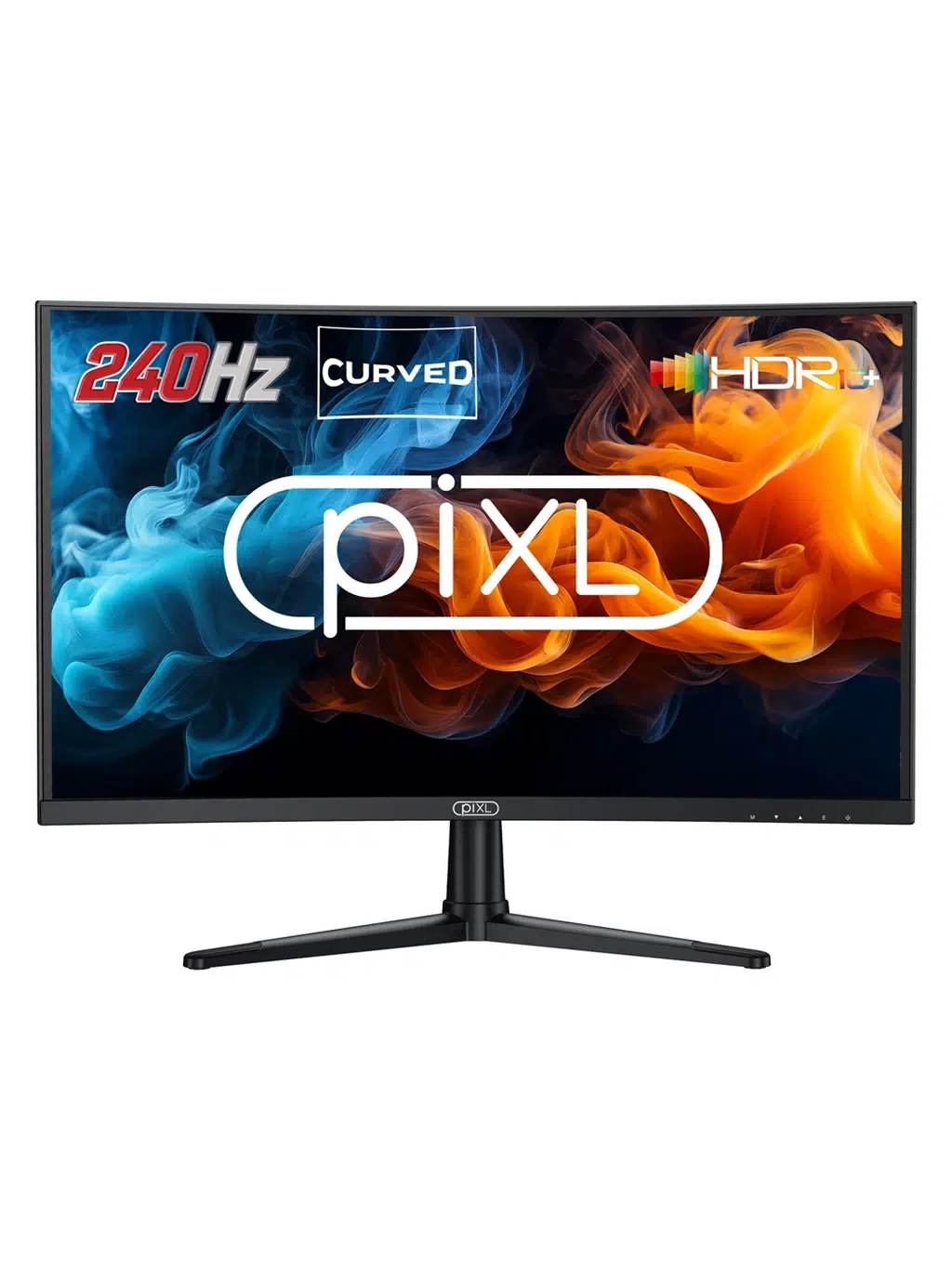
A steady number matters more than a high peak. Big drops show up as stutter even when the average looks good. Compare the reading with your monitor’s refresh rate; a 240Hz screen can show more frames than a 60Hz one. The frame rate article on Wikipedia explains the basics.
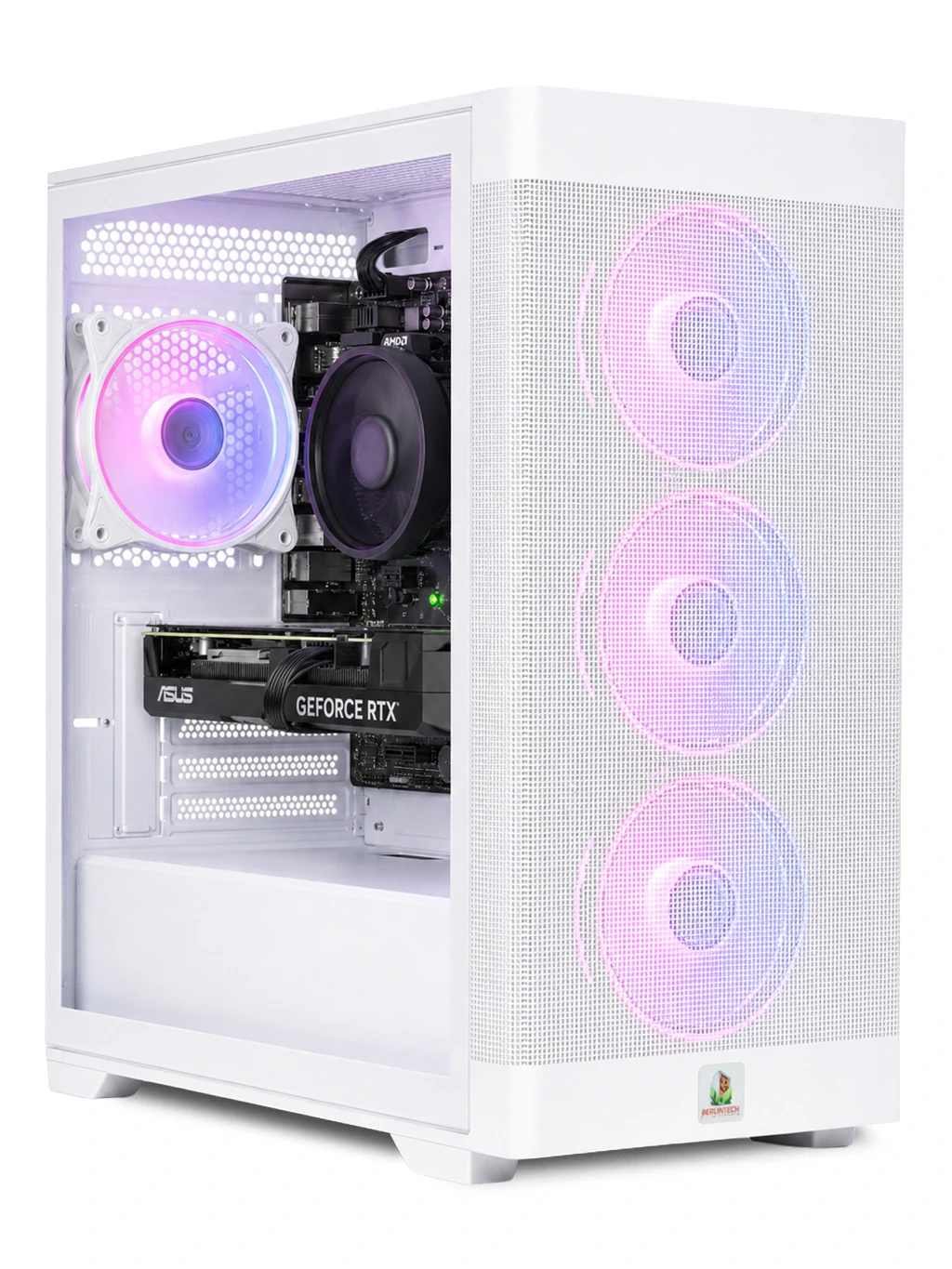
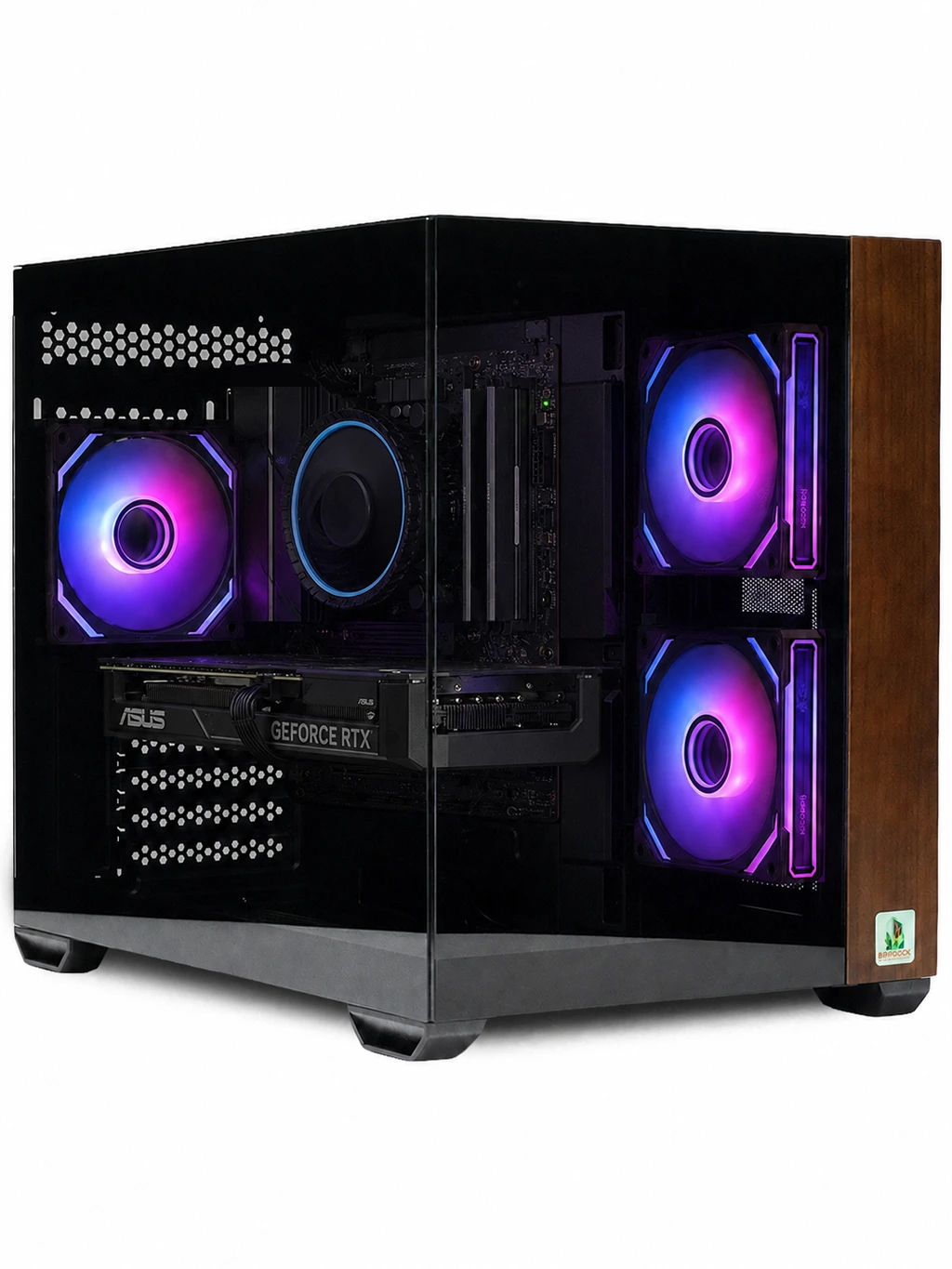
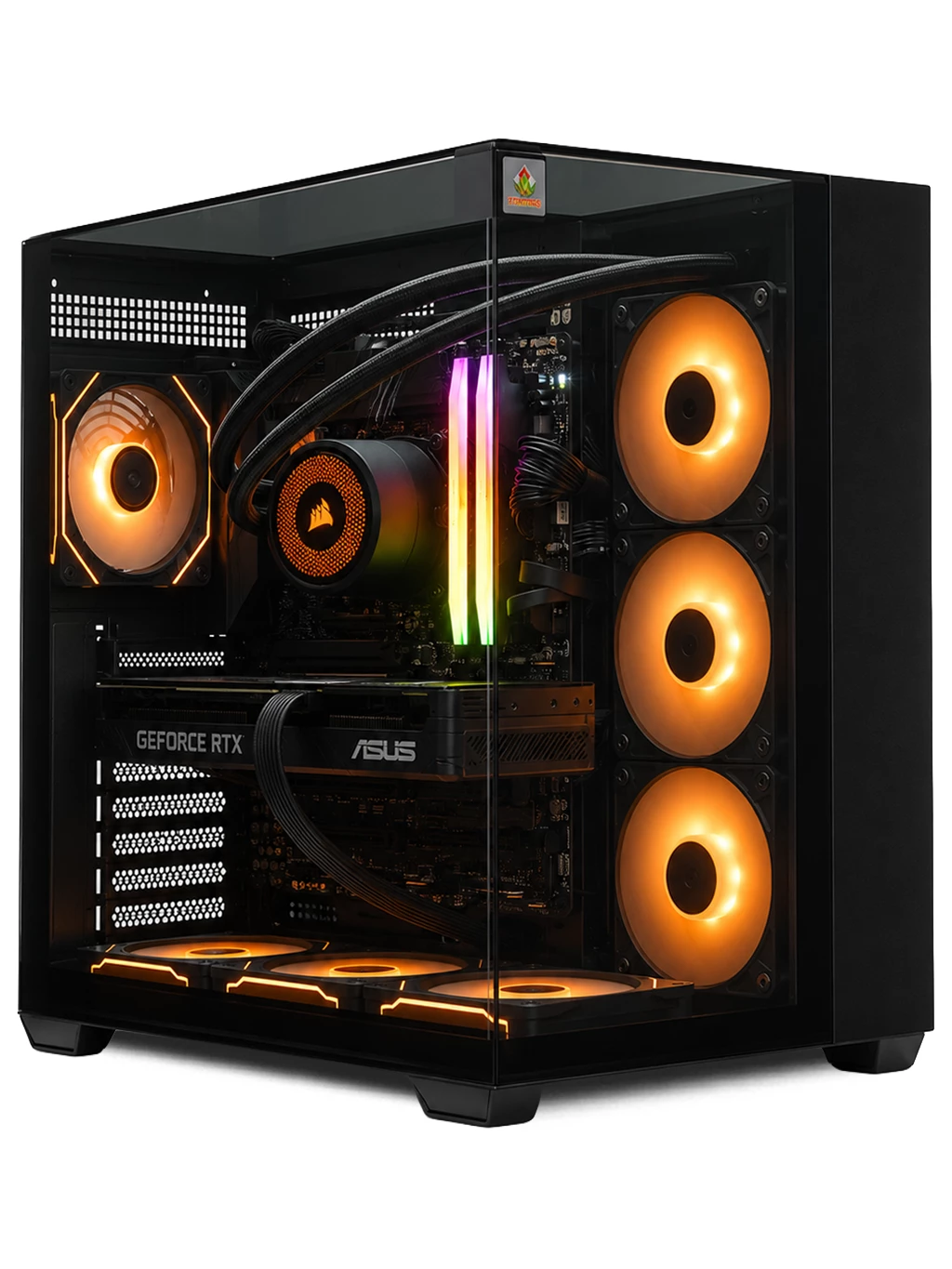
If your FPS counter shows low numbers, try lowering resolution or graphics settings, updating drivers and closing background apps. If the gap is still large, an upgrade may help. The RTX Gaming PC uses an RTX 5060, and the Titan Gaming PC has an RX 9060 XT 16GB. Pair either with a fast display such as the piXL 27 Inch 240Hz Curved Monitor from our monitors range.
FPS Counter FAQs
Does an FPS counter lower performance?
Built-in counters have very little impact. Running several overlays at once can add a small overhead, so use one at a time.
Why does my FPS counter not appear?
Some games block overlays in exclusive fullscreen. Try borderless mode, check the overlay is enabled, and restart the game.
What is a good frame rate?
Many players aim for at least 60 FPS, while competitive players often prefer higher numbers to match high-refresh monitors.
Want higher numbers on your FPS counter? Explore our RTX gaming PCs or contact us for help choosing.